Importing read codes
Use read codes mapping to import multiple read codes from a CSV file or spreadsheet.
-
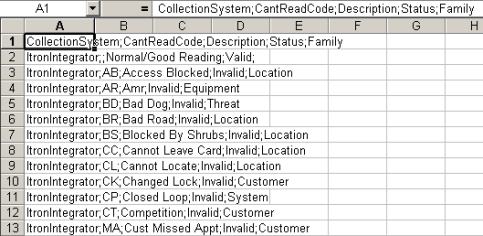
Create a spreadsheet or CSV file that contains all of the read codes for that external system. This file must contain one row per read code, with the following entries:
-
Collection System
-
Can't Read Code
-
Description
-
Status
-
Family
Tip: If all of your collection systems use the same set of read codes, you can import a single CSV file into IEE, and then copy the read codes mapping to all external systems from within the IEE rich client.
-
-
In the IEE rich client, go to System Administration > System Admin > Read Codes Mapping.
-
Map the rows in the CSV file to the IEE database table. See Mapping read codes for more information.
-
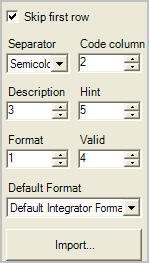
If your CSV file contains a heading row, select the Skip first row checkbox to exclude it from the import process.
-
From the Separator dropdown menu, select the delimiter used in the import file. Acceptable delimiters: comma, semi-colon, point, or separator pipes.
-
In Code Column, enter the column of your import file that contains the Can’t Read codes. For example, if they are in the second column, enter 2.
-
In Description, enter the column of your import file that contains the description values. For example, if they are in the third column, enter 3.
-
In Hint, enter the column of your import file that contains the read status value. For example, if they are in the fifth column, enter 5.
-
In Format, enter the column of your import file that contains the external system values. For example, if they are in the first column, enter 1.
-
In Valid, enter the column of your import file that contains the True/False values to populate. For example, if they are in the fourth column, enter 4.
-
From the Default Format dropdown menu, select the collection system to which these read codes apply.
-
-
Click Import.
-
Browse to the import file.
-
Click Open.
-
Click Save.